How Project-OM works
From signing up to downloading your finished manual, step by step, with screenshots from the portal. Most of it is a few minutes' work for you; the compiling is ours.
No charge to sign up. You pay once you're happy with the preview.
WATCH · 1:23 WALKTHROUGH
Create your account
Sign up with your work email address and a password. We send a confirmation link to that address; click it and you're in. Next time, you can sign in with a password or a magic link.
- Use an address you check daily: quotes, previews and reminders all go there
- No confirmation email? Check your spam or junk folder
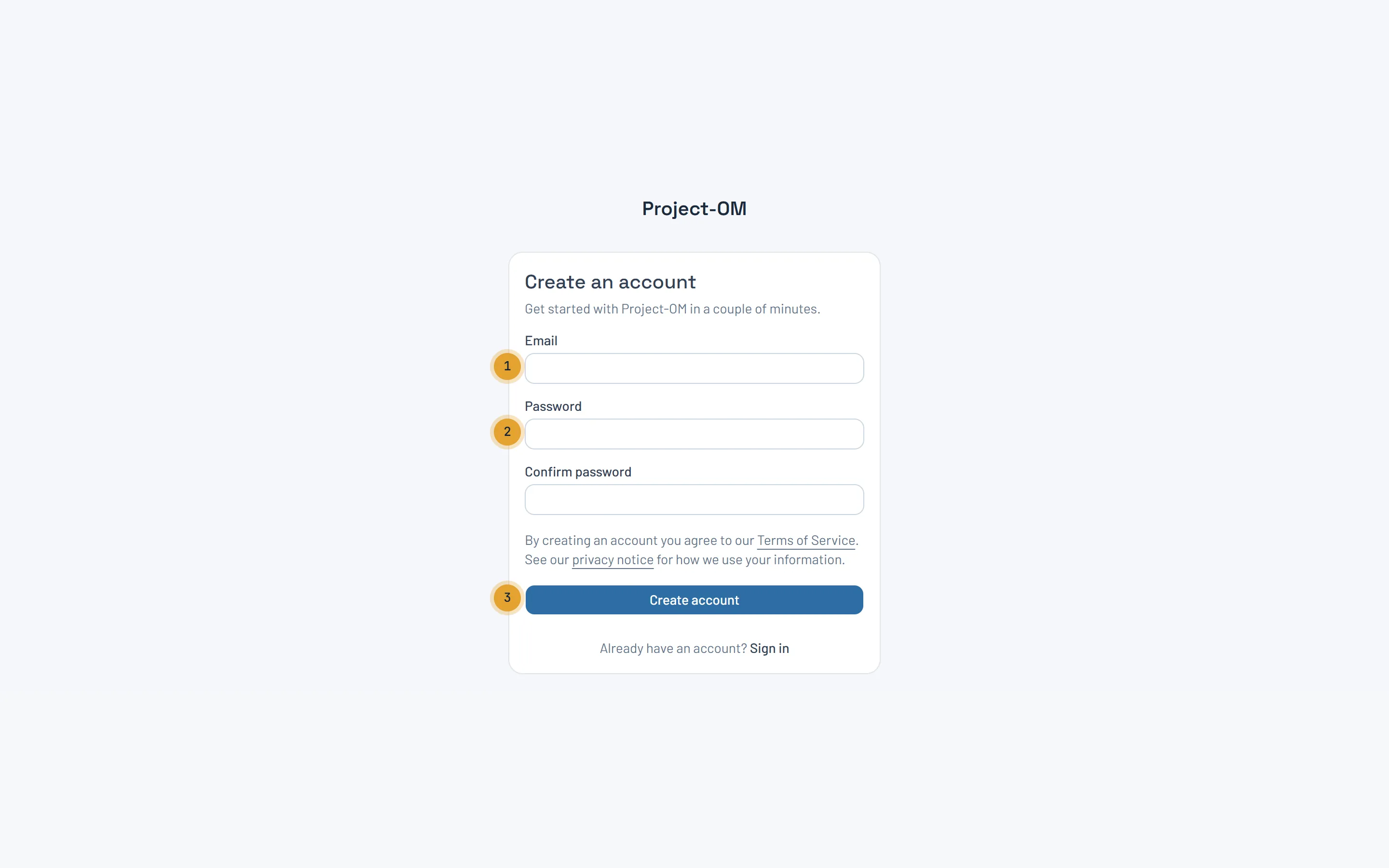
- Marker 1: Work email
- Marker 2: Password
- Marker 3: Create account
Set up your company
Add your company name, primary contact, phone, website and address, upload your logo and pick a brand colour. They appear on the cover and project information pages of every manual you order.
- Do this once; every project uses it
- Use a logo file with a transparent background if you have one
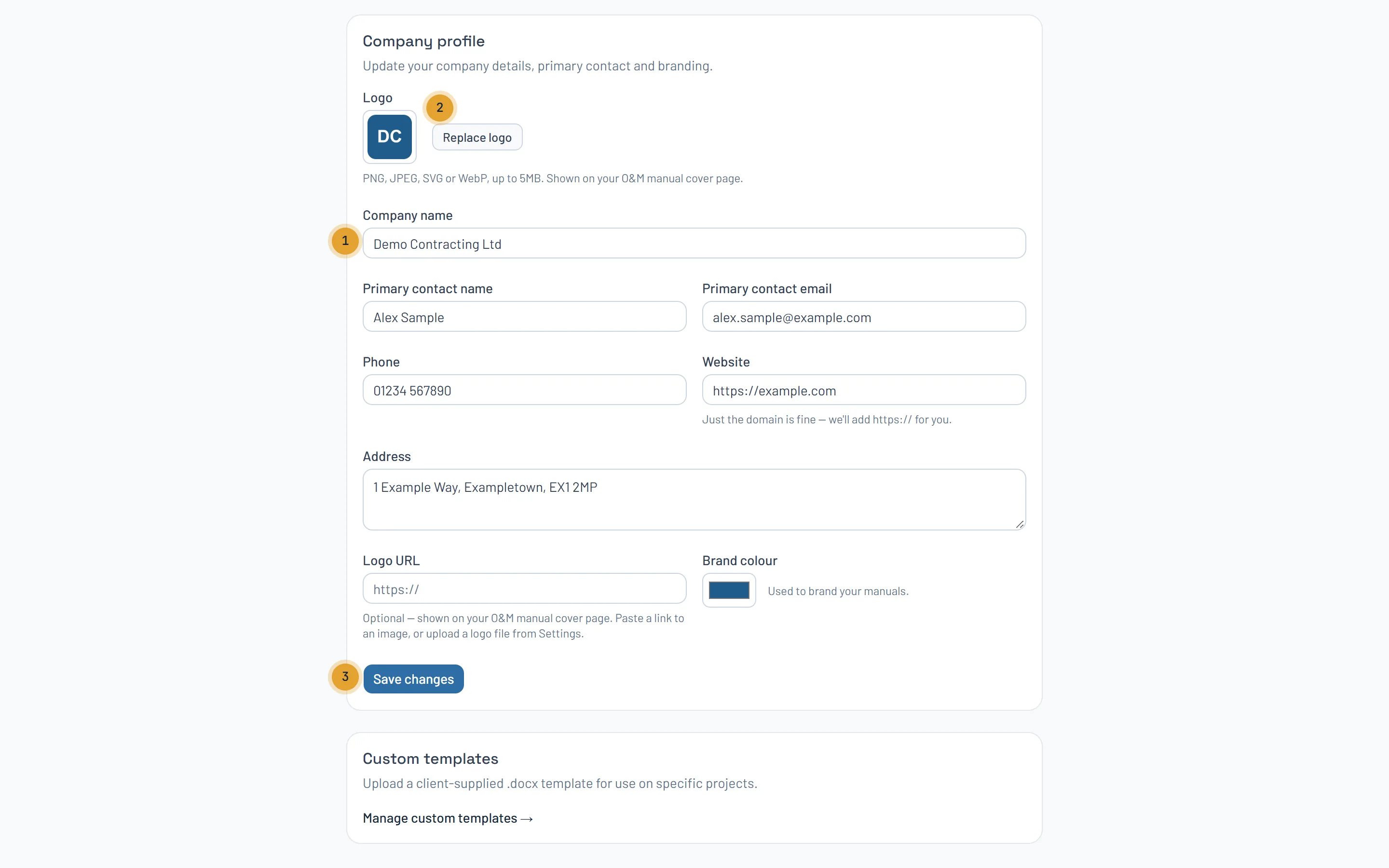
- Marker 1: Company details
- Marker 2: Logo upload
- Marker 3: Save
Create a project
Only the project name is required. Add the site address, your project reference, the end client, the target handover date and the project type, a rough count of datasheets and drawings, and tick the systems installed. The more you add, the better we can scope it.
- You can change the details while the project is still a draft
- Client has their own O&M template? Upload it once under Custom templates in Settings

- Marker 1: Project and site
- Marker 2: Systems installed
- Marker 3: Handover date
Upload your documents
Each project has a heading for every kind of document: job specification, manufacturer data sheets, as-built drawings, test and commissioning information and so on. Drop your PDFs under the right heading as they arrive; there's no need to wait for the full set.
- PDF only, up to 100MB per file. Save scans as PDF first
- Name files so you'd recognise them, such as DB-L1 test results
- Include subcontractors' documents in the same project

- Marker 1: Drop files here
- Marker 2: Uploaded documents
- Marker 3: Document count
Submit the project
When the set is complete, submit the project for production. The project page suggests a package from your scope; we review what's there and confirm the package and price before any work starts.
- Submit once; late documents can be emailed, but may change the package
- Nothing is charged at this point
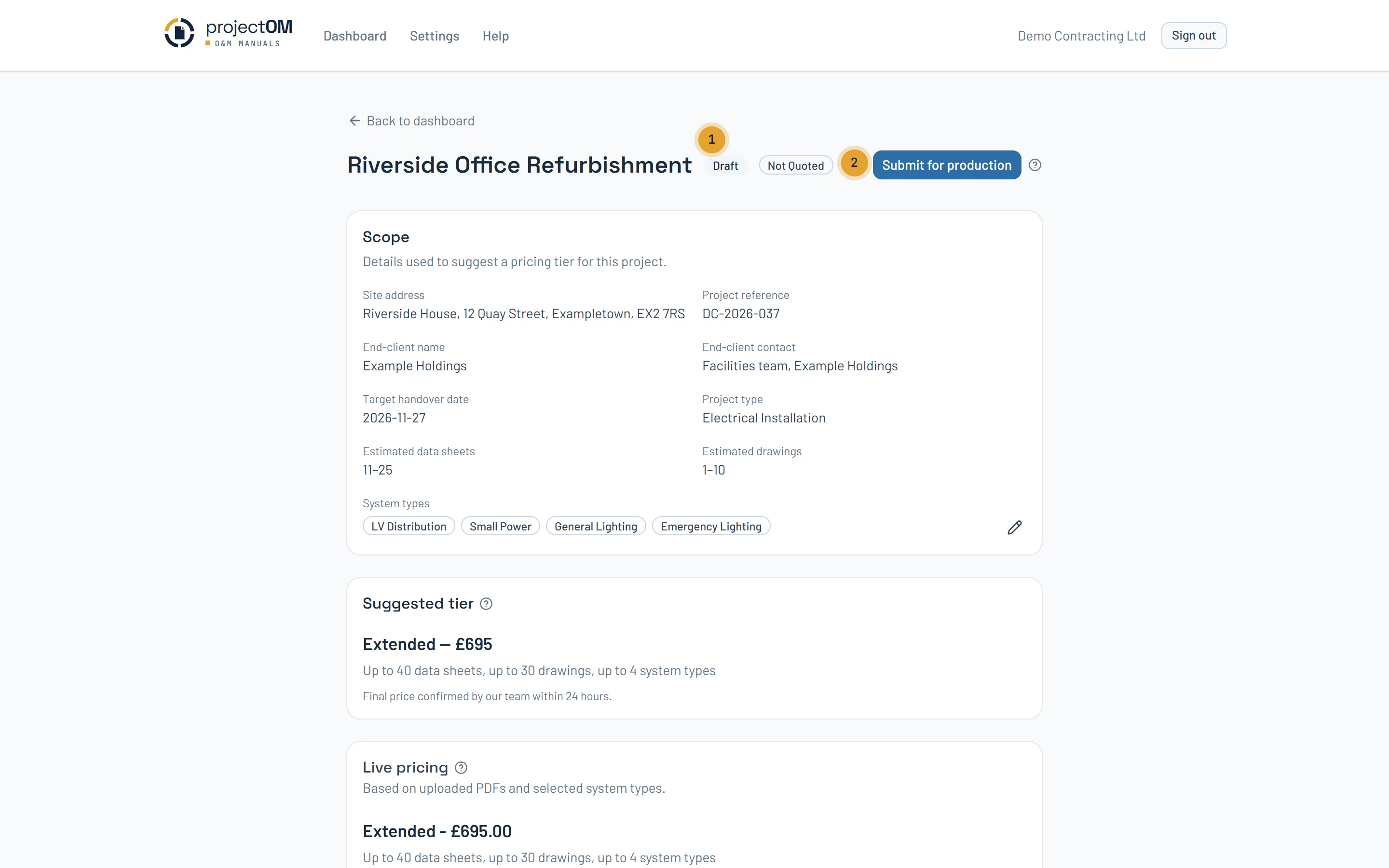
- Marker 1: Project status
- Marker 2: Submit for production
Accept your quote
Your quote appears on the project: the amount due, what it covers and a PDF copy. Accept it in the portal and we schedule your manual. We'll tell you when work starts.
- You can cancel free of charge until we start work
- Complex projects: we endeavour to return a quote within 24 hours
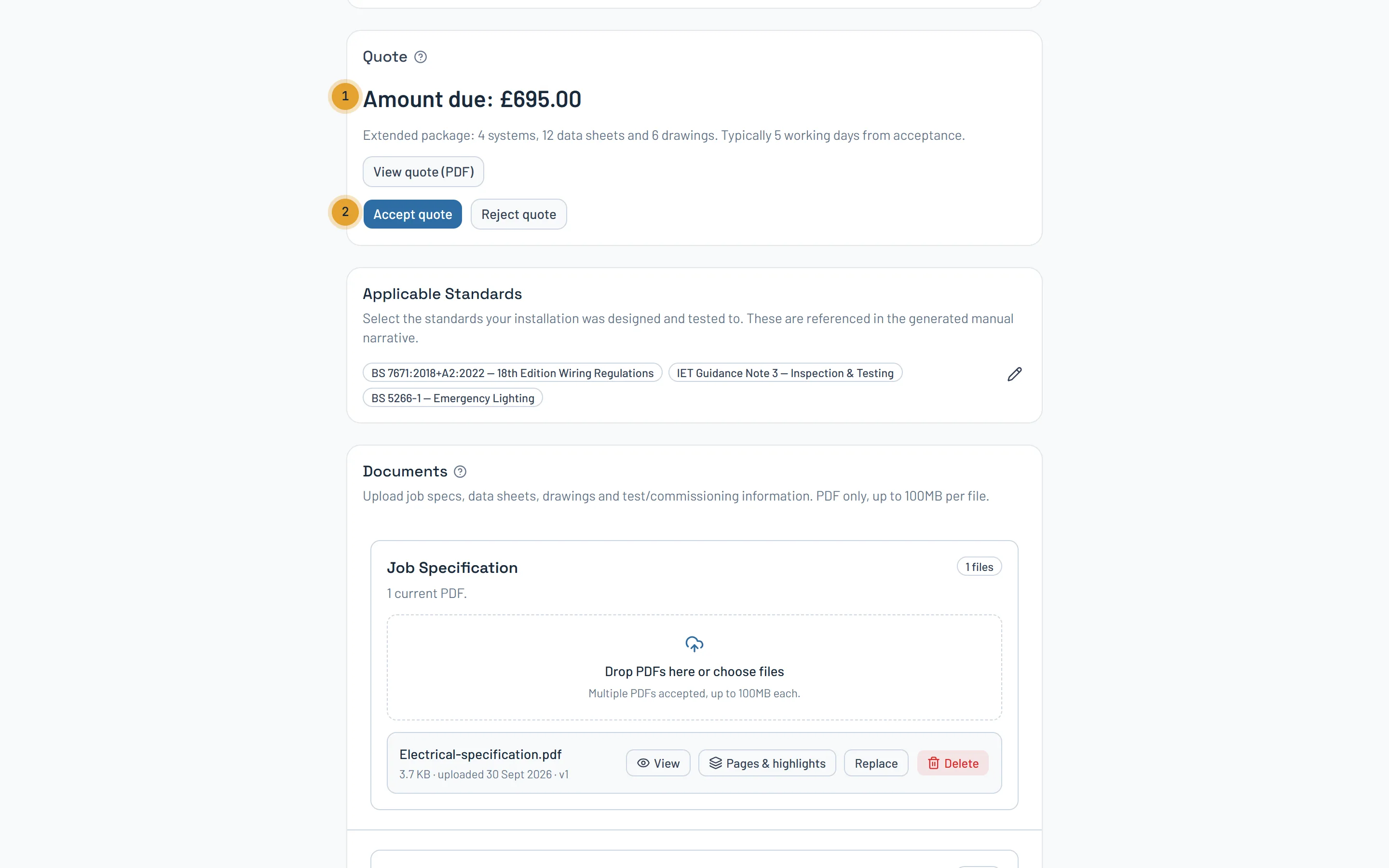
- Marker 1: Package and price
- Marker 2: Accept quote
Review the watermarked preview
When your manual is ready, you'll get an email and the watermarked preview appears in the project. Read it through: this is the time to ask for any changes.
- One round of amendments is included within 14 days of your first draft
- Further revisions start from £95, quoted first

- Marker 1: Preview viewer
- Marker 2: Watermarked draft
- Marker 3: Pay to unlock
Pay and download
Happy with the preview? Choose Pay now to unlock download and pay by card. The clean PDF unlocks in your project, ready to hand over.
- Payment is due when the preview is issued: no credit terms
- Download your manual and keep a copy: project files are deleted 30, 90 or 180 days after completion, depending on your package, with reminders before
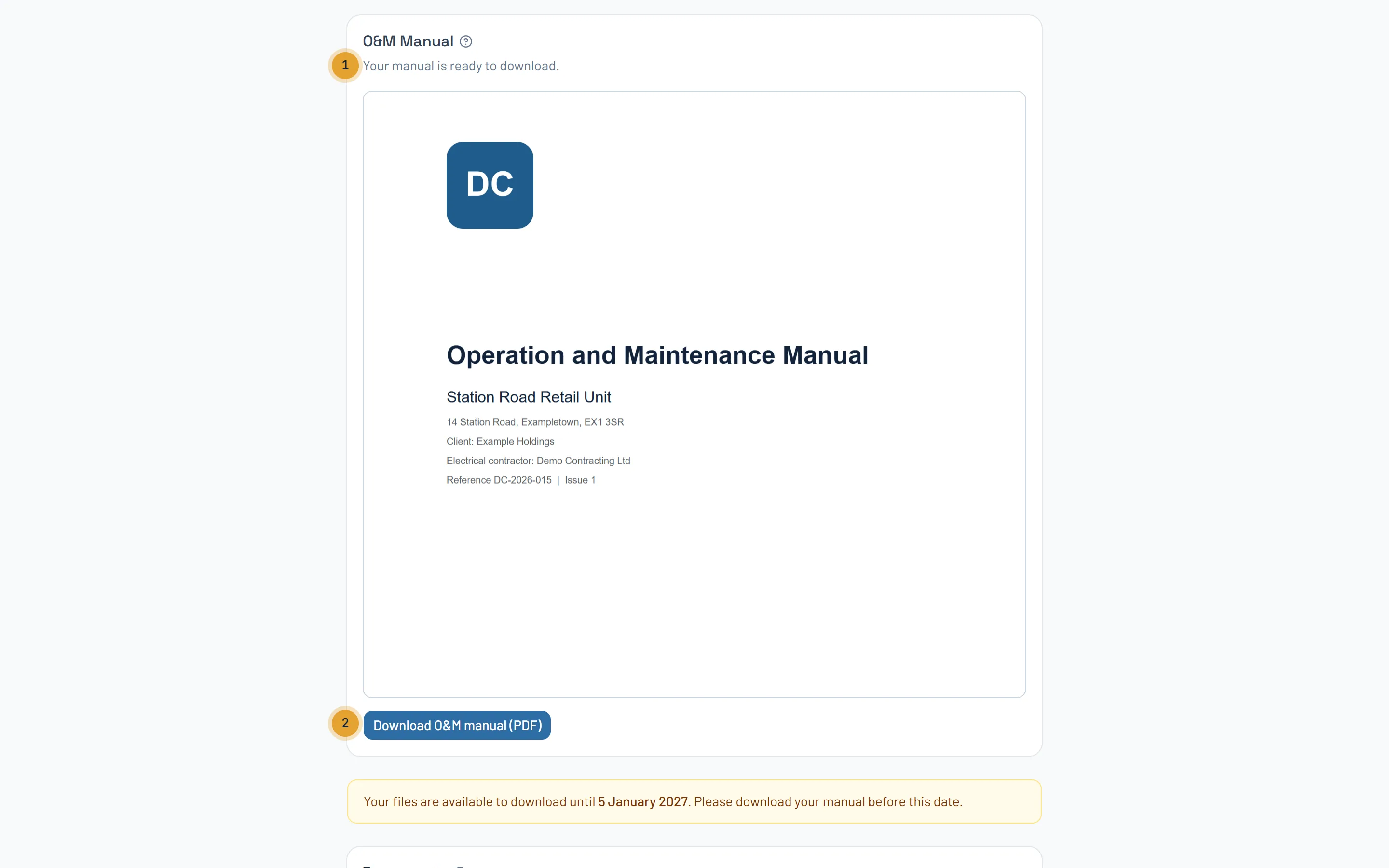
- Marker 1: Payment confirmed
- Marker 2: Download PDF
Good to know
The practical details.
- Turnaround
- Typically 5 working days. Need it sooner? 24-hour turnaround available on request. Counted from quote acceptance, once your documents are complete.
- File types
- PDF only, up to 100MB per file.
- Who sees your documents
- Only your company's account and Project-OM. Files are stored privately and opened through short-lived links.
- How long files are kept
- 30, 90 or 180 days after completion, depending on your package. We email you 21, 14 and 7 days before deletion.
- Amendments
- One round within 14 days of your first draft is included. Further revisions start from £95.
- What we don't do
- We compile what you upload. We don't create certificates, test results or other technical information.
Video transcript
Prefer to read?
The video covers the same eight steps as this page in 1 minute 23 seconds.
Here's how Project-OM turns your documents into a finished O&M manual, in eight simple steps.
First, create your account. It only takes a couple of minutes.
Next, set up your company. Add your logo, contact details and brand colour. These appear on the cover of your manual.
Then create a project. Add the project name, site address, end client, handover date and the systems involved.
Upload your documents as PDFs under each heading: the specification, manufacturer datasheets, as-built drawings and test certificates.
When everything's in, submit the project for production. We'll suggest a package based on your scope and confirm the price before any work starts.
You'll then get your quote. Check the amount, open the quote PDF, and accept it to get the work started.
Your finished manual arrives as a watermarked preview. Check it through before you pay. This is the time to ask for any changes.
Happy with it? Pay to unlock the clean PDF and download your manual. Your files stay available until the date shown.
Fixed price, with a preview before you pay. Create your account today at project-om.co.uk.
Using the portal
Questions about getting started.
Still stuck?
Email info@project-om.co.uk and we'll talk you through it.
- Is there a charge to create an account?
- No. You only pay for a manual, and only once you're happy with its watermarked preview.
- Can I change project details after submitting?
- Tell us before we start work and we'll update them. After that, changes may affect the quote.
- Where do I find my finished manual?
- In the project, once payment has gone through. Download it and keep your own copy before the files are deleted.
- Can I start without the full set of documents?
- Yes. Create the project and upload as documents arrive. Submit it when the set is complete.